
How to run your business on Contractor360
One lead, start to finish — add the customer, send the estimate, get it approved, schedule the crew, and get paid. Every screen below is the real app. Follow along in the live demo as you read.
1Start on Today
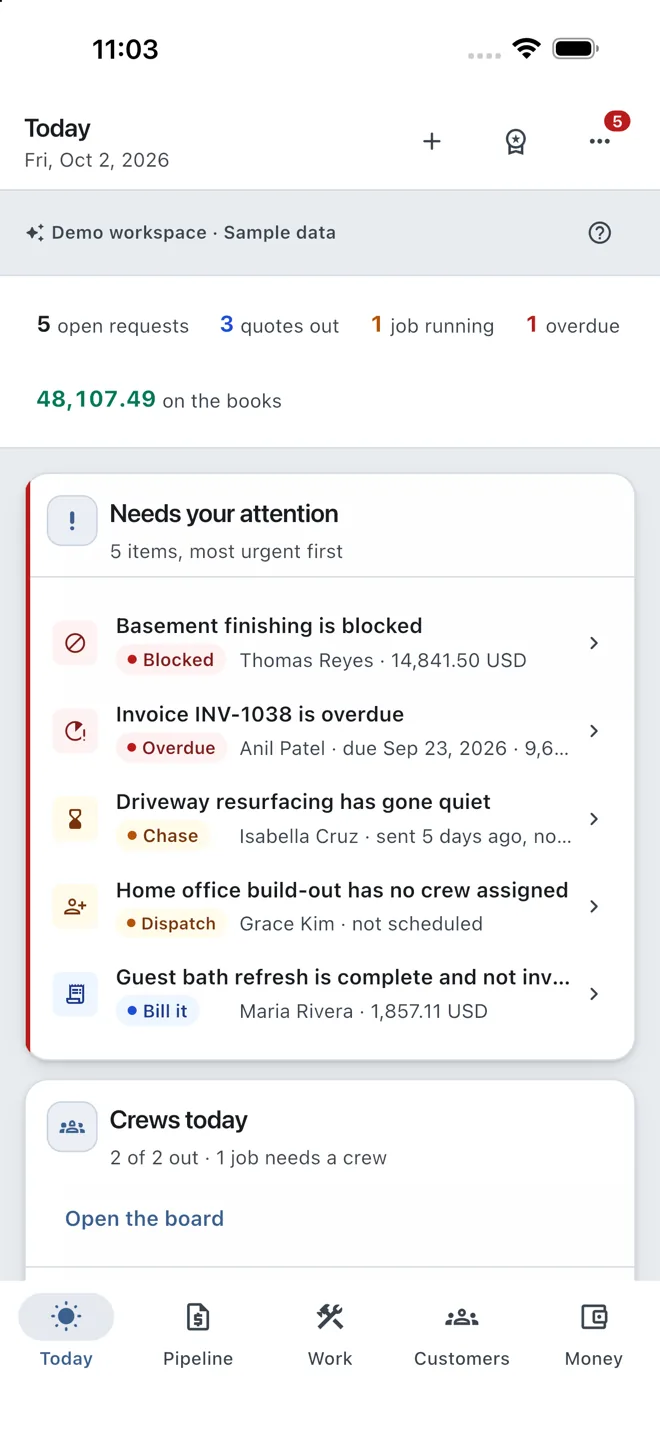
When you open Contractor360 you land on Today — everything that needs you, most urgent first. You rarely have to go looking for anything.
- The top row is your pulse: open requests, quotes out, jobs running, overdue invoices, and money on the books.
- “Needs your attention” lists the five things to deal with first — a blocked job, an overdue invoice, a quote going quiet, a job with no crew.
- Tap any card to jump straight to that job, invoice or customer.
2Add a customer
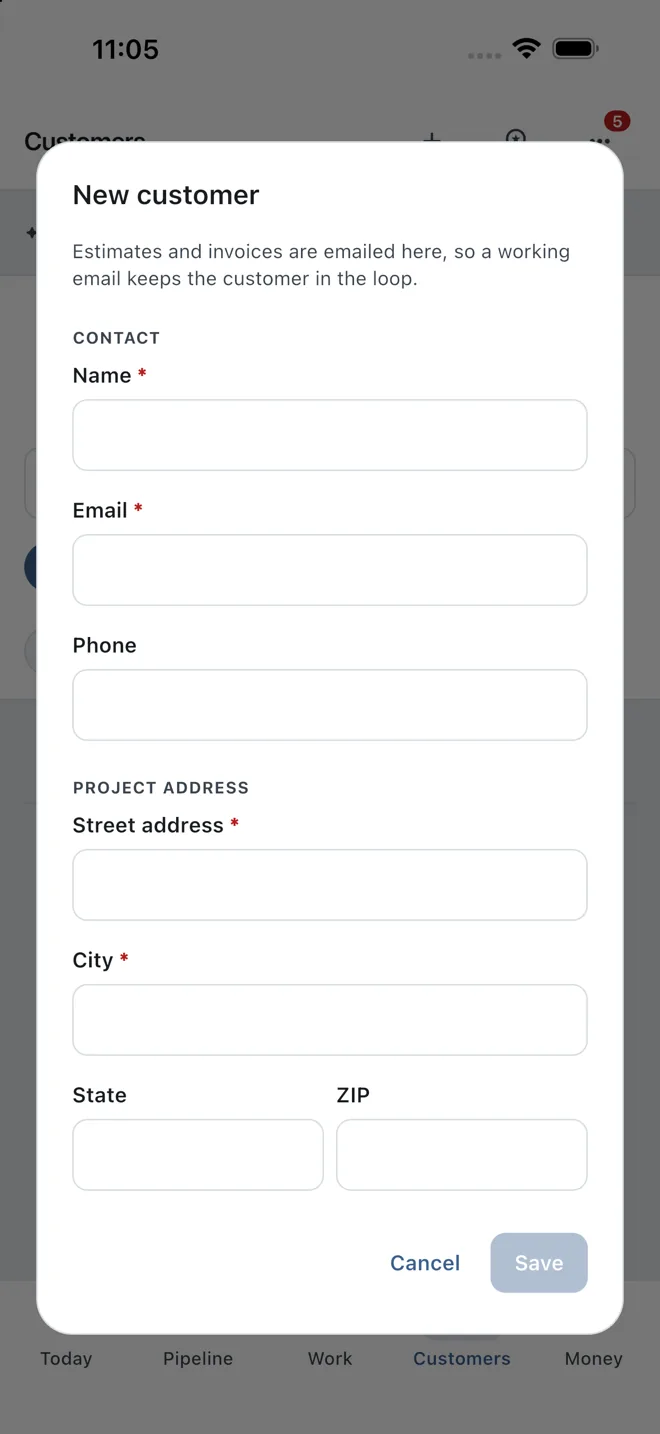
Everything starts with a customer. Open Customers from the bottom bar and tap New customer.
- Fill in the name and email — estimates and invoices are emailed here, so a working email keeps them in the loop.
- Add the project address (street, city, state, ZIP). The map and the paperwork both use it.
- Tap Save. The customer is now on your books and ready for a quote.
3Log the request
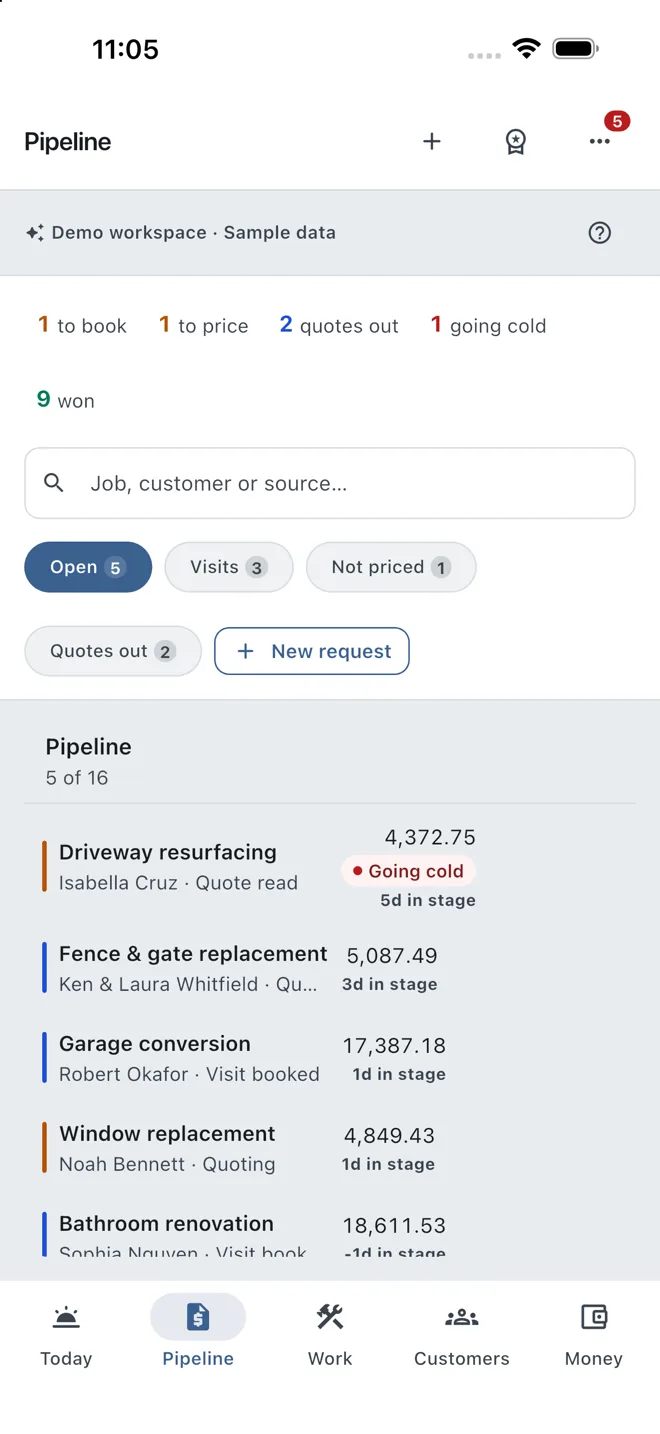
A phone call or a web lead becomes a request in your Pipeline. Tap New request, pick the customer, and describe the work.
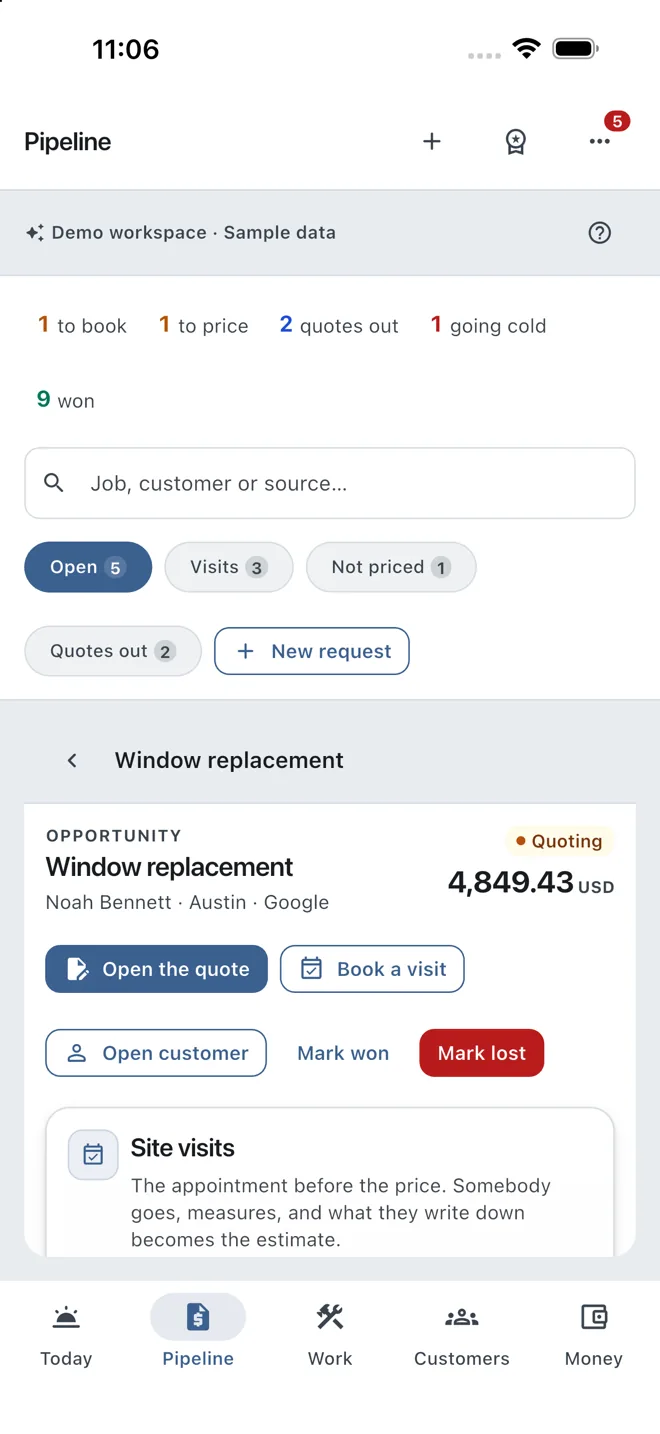
- The counters along the top show where every lead stands: to book, to price, quotes out, going cold, and won.
- Filter with the chips — Open, Visits, Not priced, Quotes out — to work one pile at a time.
- Need to see the site first? Book a visit; whoever measures, their notes become the estimate.
4Build and send the estimate
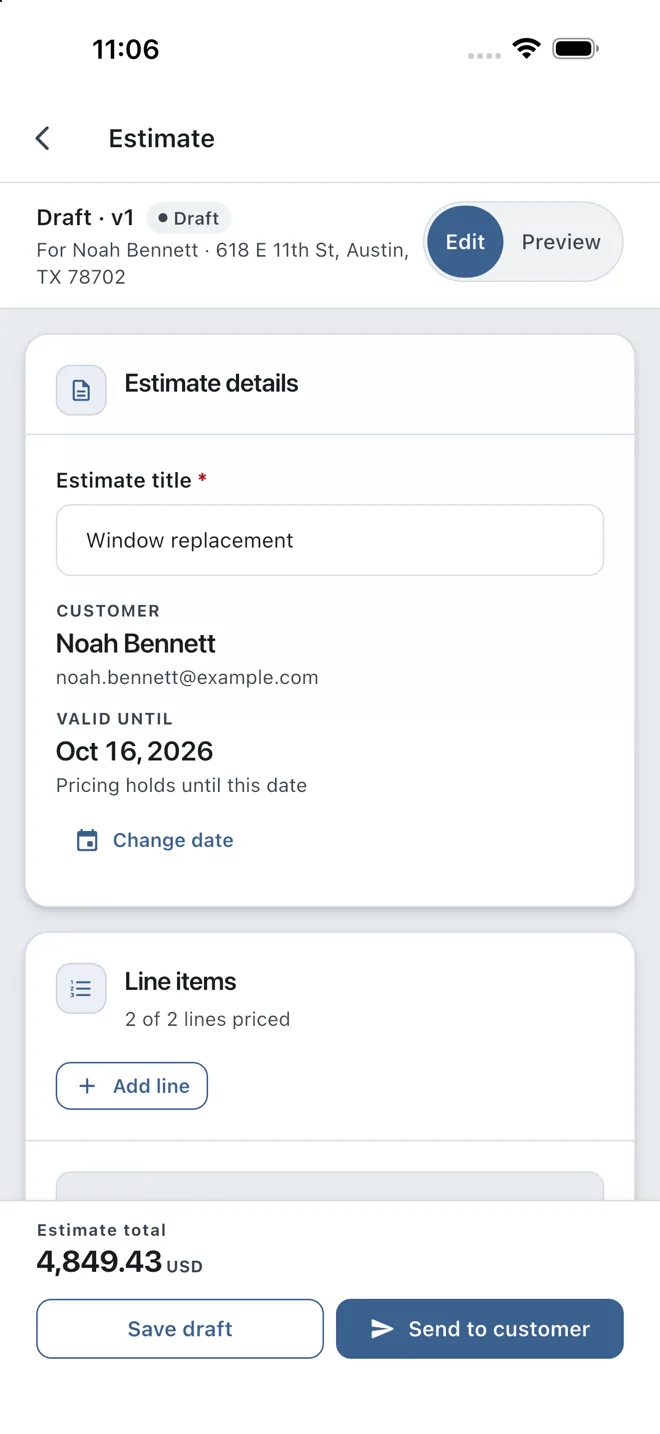
Open the lead and tap Open the quote. Give the estimate a title, then add your line items — the total updates as you type.
- Tap Add line for each item. Each line carries its own quantity, price, tax and discount.
- Switch to Preview to see exactly the branded estimate your customer will get.
- When it’s right, tap Send to customer. It goes out by email with a one-tap approval link.
5Your customer approves — in one tap
Your customer opens the email, reads the estimate, and taps Approve — no login, no app to install. The moment they do, the lead becomes a scheduled job.
- You see the status change on the opportunity: Quoting → Won, with the approved amount locked in.
- The figure your customer agreed to is the figure you’ll invoice from later — nothing is re-keyed.
- No chasing signatures or scanning paper. The approval is on the record automatically.
6Assign the job to a crew
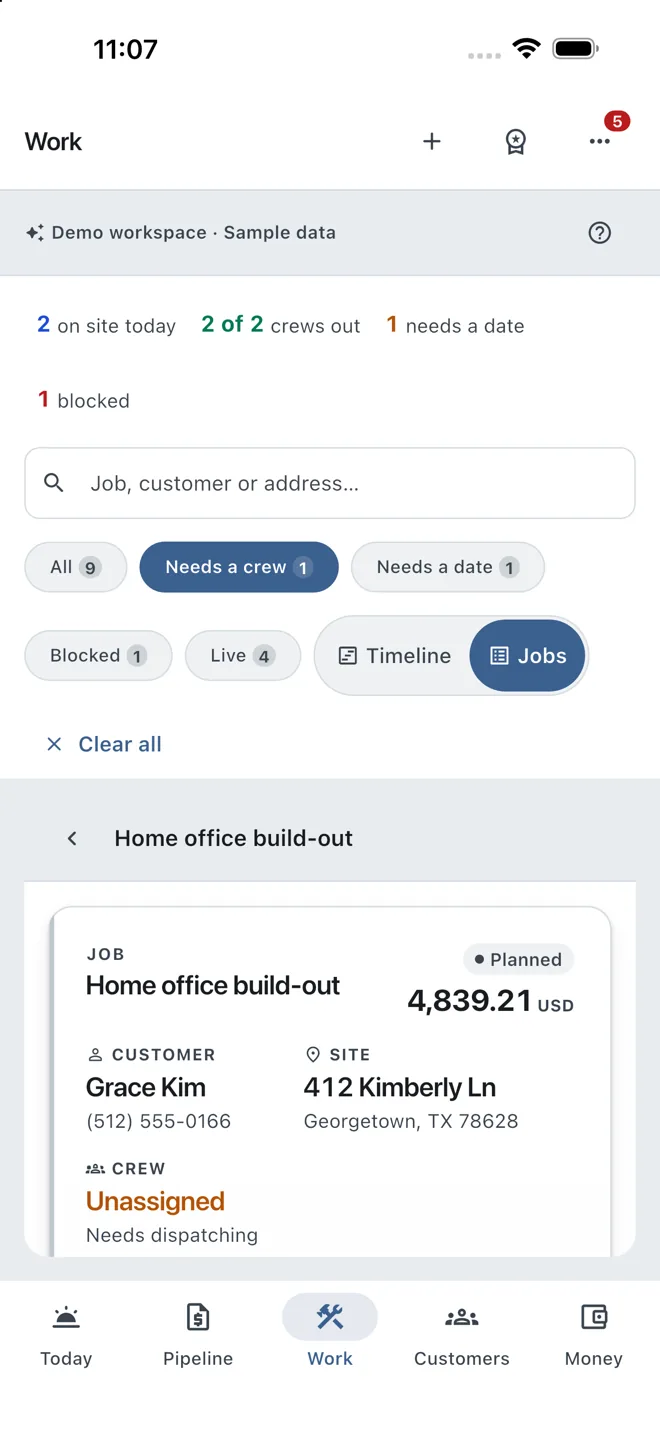
Open the job from Work. A fresh job shows Crew: Unassigned · Needs dispatching. Tap to dispatch, then pick who’s doing it.
- Choose a crew member — only the people on your team show up here.
- Set the start and end dates while you’re there; the schedule board updates instantly.
- The assigned worker now sees this job (and only this job) in their own crew app.
7Schedule and reschedule
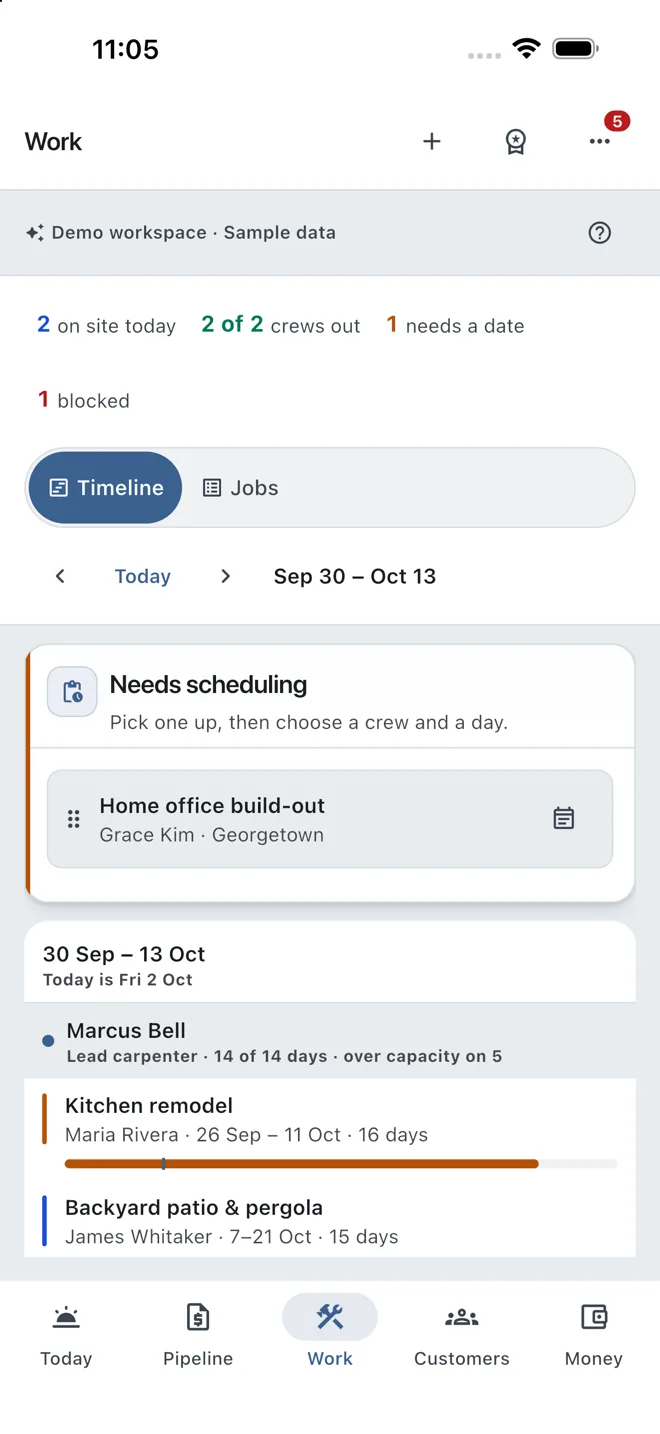
Work → Timeline is your whole week across every crew. Anything without a date sits in “Needs scheduling” at the top, waiting to be placed.
- Pick a job from Needs scheduling, choose a crew and a day — it drops onto the timeline.
- Plans change: reschedule a job and the dates move everywhere at once — the crew sees the new day immediately.
- The bars show who’s over capacity, so you don’t double-book a carpenter.
8Invoice and get paid
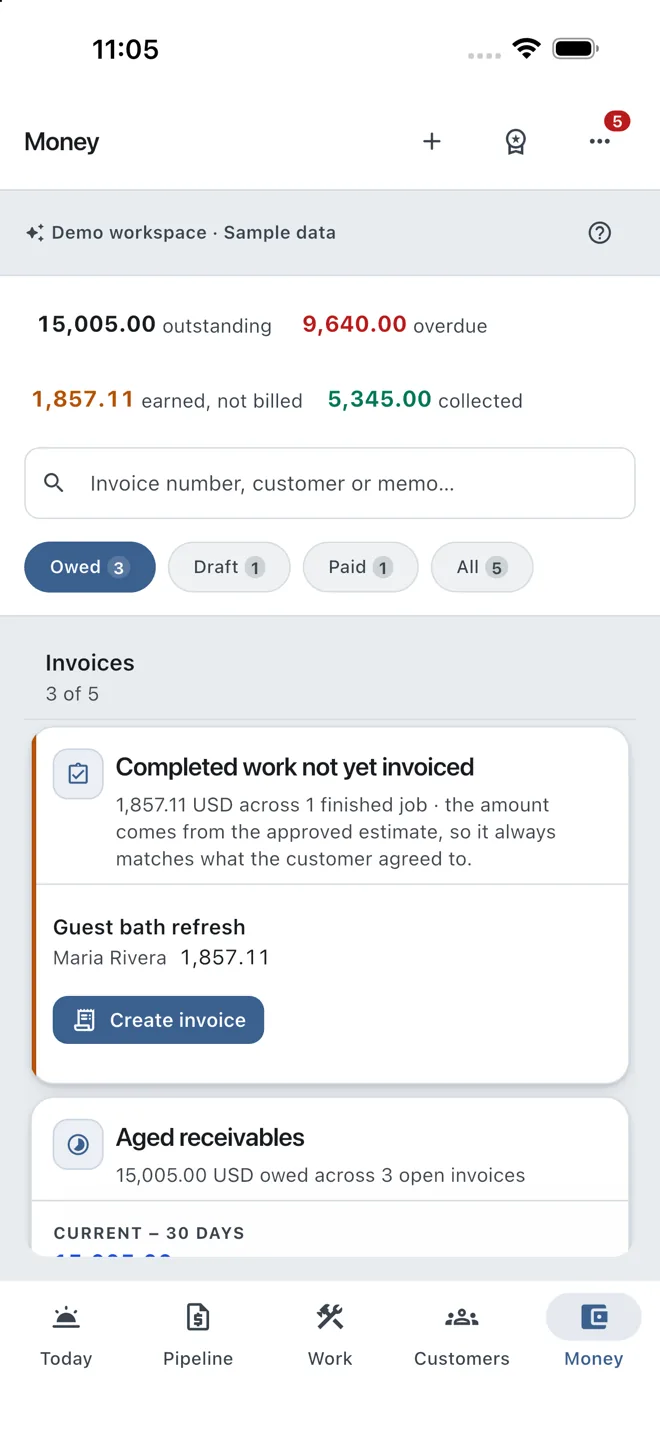
When the work is done, Money shows what’s finished but not yet billed. Tap Create invoice and it’s pre-filled from the approved estimate.
- The amount always matches what the customer agreed to — the estimate carries straight through.
- Track every invoice by state: Owed, Draft, Paid. Overdue ones are flagged in red.
- Send a reminder with one tap; the aged-receivables view shows exactly who owes what.
9Add your team — and set what each person sees
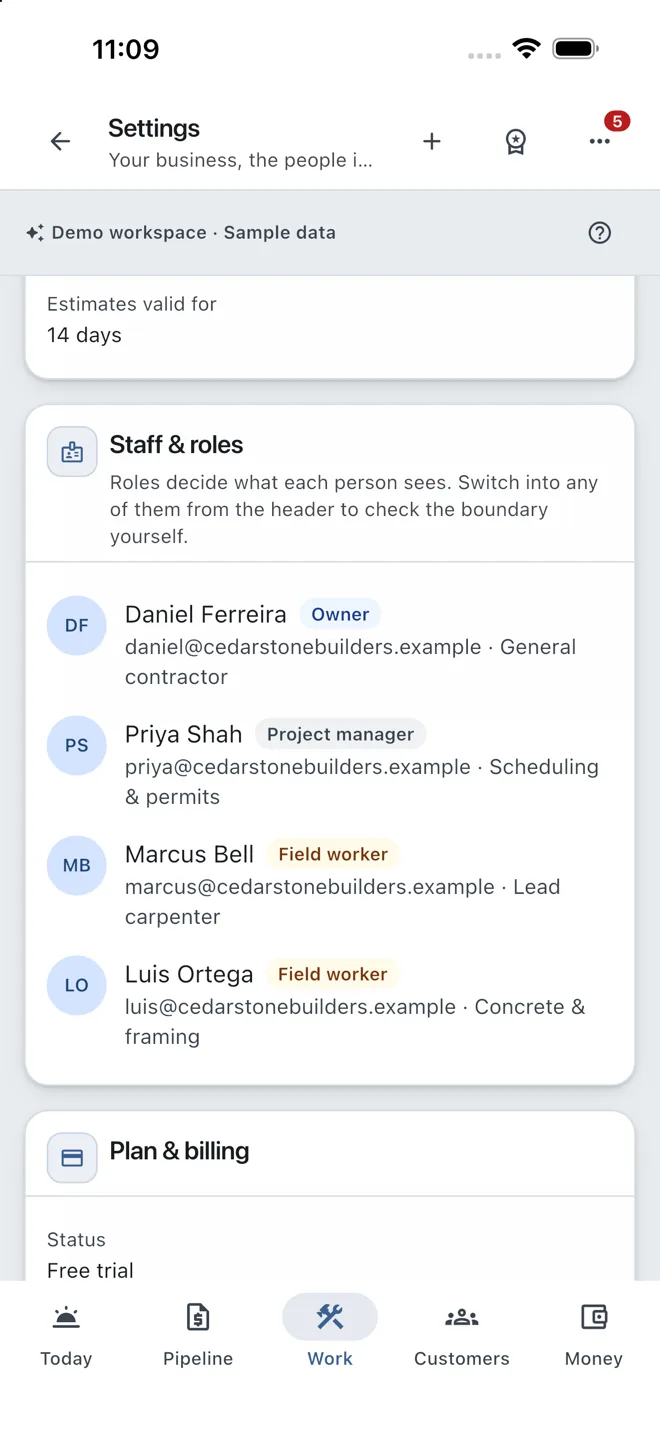
Open the ⋯ menu → Settings → Staff & roles. Everyone on your business has a role, and the role decides exactly what they can see and do.
- Owner — the full back office: pipeline, estimates, scheduling, invoicing and settings.
- Project manager — runs the work: leads, estimates, the jobs board and the crew schedule. No billing.
- Field worker — a phone-first app with only their assigned jobs, start/complete and progress photos. No pricing anywhere.
That’s the whole loop
Lead to paid, in one place. Start your 14-day free trial and run your next estimate through it — or walk the guided demo first.
14-day free trial · No credit card required · Cancel anytime